

Generate Dark Mode Icon Variants
By Axialis Team
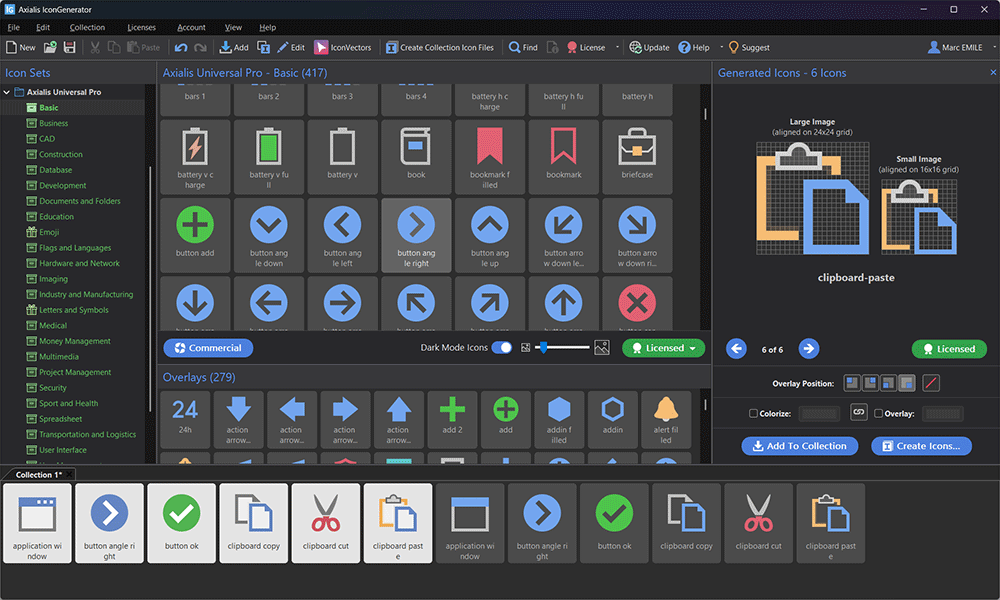
Dark Mode Icons transforms generated icons for dark backgrounds. It changes icon rendering behavior, not the application UI theme preference itself.
Step 1 - Prepare base selection
- Select base icons in icon list.
- Add overlays if needed for action/state variants.
Step 2 - Enable Dark Mode Icons
- Use the Dark Mode Icons toggle under the icon list, or
- Use Edit -> Dark Mode Icons.
Preview background switches dark and icon colors are transformed for contrast.
Step 3 - Keep both light and dark variants
- Add icons to collection in normal mode (light variant).
- Enable Dark Mode Icons and add again (dark variant).
- Rename dark entries with a suffix like
-darkor_DARK.
Step 4 - Export dark variants
- Export current selection with F3 while Dark Mode Icons is enabled, or
- Use Force Icon Generation in Dark Mode in export options.
Contrast tuning
If default transformation is not enough for a specific product theme, combine dark mode generation with explicit icon and overlay colorization.