

Keep IconGenerator and Icon Sets Updated
By Axialis Team
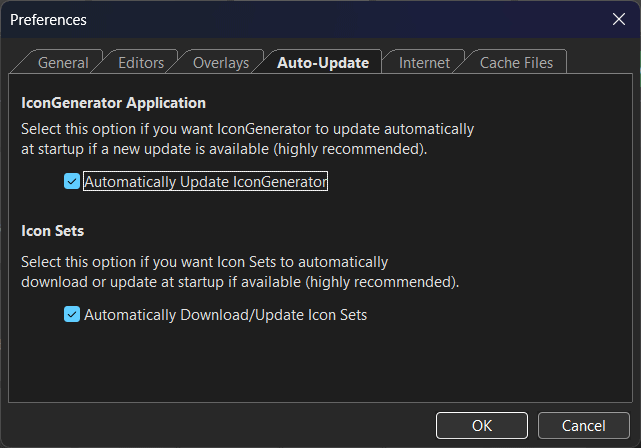
IconGenerator has two separate update flows: one for the application and one for icon sets. Configure both so your team gets bug fixes and newly published icon content with minimal manual work.
Step 1 - Enable automatic updates
- Open
Edit -> Preferences...(F2). - Go to the Auto-Update tab.
- Enable Automatically update IconGenerator.
- Enable Automatically download/update icon sets.
Step 2 - Run manual checks when needed
- Use toolbar Update for quick checks.
- Use
Help -> Check For Updatesfor explicit update runs.
Manual checks are useful after a deployment freeze or when validating a new workstation.
Step 3 - Configure proxy access in restricted networks
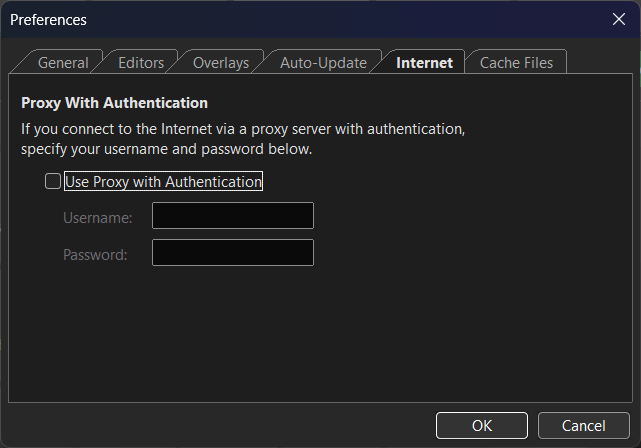
- Open the Internet tab in Preferences.
- Enable Use proxy with authentication if required.
- Enter username and password, then retry updates.
Step 4 - Troubleshoot update failures quickly
- Run a manual check from
Help -> Check For Updates. - Verify network connectivity and firewall/proxy settings.
- Confirm credentials in the Internet tab if your company proxy changed.